Transcode or not — the precedence chain
"Transcoding" means re-encoding a track on the fly — to a format the device can play, or so MusicBee's EQ and volume-levelling can be applied. The plugin would rather not transcode (sending the original file is faster and lossless), so it walks a fixed chain of rules to decide. Higher rules win and silently override lower ones. This is the single most misunderstood part of the plugin, because several settings look like they should cooperate and don't.
| Priority | Rule | Effect |
|---|---|---|
| 1 (highest) | Force transcoding (per device profile) | Always transcode. Overrides everything below. Mutually exclusive with force-native — ticking one unticks the other. |
| 2 | Force native stream (per device profile, default ON) | Never transcode for this device. Suppresses rules 3–5 entirely — sends the original bytes regardless of format, effects, or limits. |
| 3 | EQ/DSP and ReplayGain (Library) | Force transcoding so the audio can be processed. Silently ignored if rule 2 wins. |
| 4 | Sample rate / bit depth / stereo-only (device profile) | Source out of range → transcode to fit. Silently ignored if rule 2 wins. |
| 5 (lowest) | Codec support (device profile) | Source codec the device can't play → transcode to the profile's output format. Silently ignored if rule 2 wins. |
Because force native stream defaults to ON for every profile, the out-of-the-box behaviour is: hand the device the original file and do nothing else. That's exactly right for a modern device on a good network — but it means the Library effects and the profile's audio limits appear to "do nothing" until you change rule 2.
Worked example. You want MusicBee's ReplayGain volume-levelling to apply to your streamer. You tick Level the playback volume using the replay gain mode active in MusicBee under Library. You play a track — and the volume isn't levelled at all.
Why: the streamer's profile still has force native stream ON (rule 2). Rule 2 outranks the ReplayGain rule (rule 3), so the plugin ships the untouched file and your ReplayGain setting is silently skipped.
The fix: open that device's profile and untick force native stream. Because force-native is per profile, you can leave it on for your bit-perfect hi-fi DAC and off for the portable speaker that needs ReplayGain — each device gets the right answer.
Rules of thumb:
- Want EQ/DSP or ReplayGain to apply to a device? Turn force native stream off on that device's profile.
- Want to guarantee a fresh transcode (for testing, or for a device that chokes on native files)? Tick force transcoding on its profile — it outranks everything.
- Otherwise, leave force native stream on. It's the highest-impact setting in the plugin and the default is right for most modern gear.
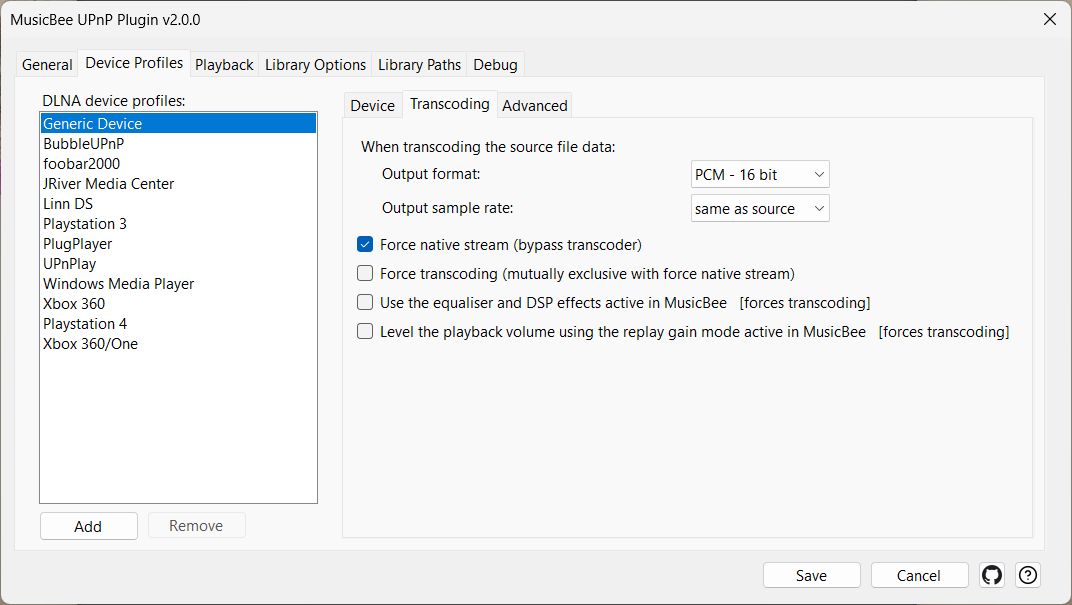
Settings
| Control | What it does |
|---|---|
| Force native stream (bypass transcoder) | Sends the original file bytes, bypassing the transcoder, effects, ReplayGain and the profile's audio limits. Default ON. The highest-impact playback setting; rule 2 of the chain above. |
| Force transcoding (mutually exclusive with force native stream) | Forces every stream to this device through the transcoder. Outranks force-native; the two are mutually exclusive (ticking one unticks the other). Rule 1. |
| Use the equaliser and DSP effects active in MusicBee [forces transcoding] | Applies MusicBee's equaliser and DSP effects to outgoing audio. Forces transcoding (rule 3), and is suppressed on any device whose profile has force-native on. |
| Level the playback volume using the replay gain mode active in MusicBee [forces transcoding] | Applies MusicBee's ReplayGain volume-levelling. Forces transcoding (rule 3), and is suppressed on any device whose profile has force-native on. |
| Force native stream for radio (bypass transcoder for stations) | Sends radio/stream sources untouched, bypassing the transcoder for stations specifically. |