Discovery paths — each node's drill-down route
A discovery path is the route a browser walks inside a node. The same node can be presented as Album Artist → Album → Tracks, or as a single flat track list, or grouped by Genre and then Artist, or by Year. A path is built from one or more levels (the field each level groups by) ending in a leaf (what the deepest level shows — albums then their tracks, or a flat track list). A node can even carry several paths at once, so it offers more than one way in.
Different content wants different shapes, and the wrong shape makes a node unusable. Music wants album-artist grouping; a playlist wants a flat ordered list; podcasts want their subscriptions. Each node gets the right answer because each holds its own path.
Worked example. You have a 5,000-track Jazz filter and a 30-track "Friday Night" playlist, both exposed.
- For the Jazz filter you apply a template whose path is Album Artist → Album → Tracks. On the device you drill: artists, then that artist's albums, then the album's tracks in disc-and-track order.
- For the playlist you apply the Flat Tracks template instead. Opening it gives the 30 tracks in playlist order, with no artist or album layer in between — exactly what a playlist should be.
Same plugin, same dialog, two nodes, two completely different shapes — because the path is a property of the node, not a global setting. You can't predict a node's on-device layout without knowing which template it carries; that's why this needs spelling out.
A node doesn't just receive a copy of a template — it follows it. The View tree shows which template each node follows, right after the node's name, and editing a template on the Paths tab immediately reshapes every node following it — no re-applying node by node. Applying a template to a hidden node also makes it visible again: applying is the "show me this, shaped like that" gesture, while hiding stays with the Visible checkbox. Each template row shows a live (n) count of the nodes following it, and a template can only be deleted while that count is zero — the delete button stays disabled while anything follows the template, so a node can never be left orphaned by a delete. To see exactly which nodes follow a template, the funnel button beside the View tree filters the tree down to just those nodes; selecting another template re-filters, and toggling the funnel off restores the full tree. Deleting an unused template also sticks now — the shipped defaults are no longer quietly re-created the next time the plugin loads.
When a path ends in the Album → Tracks leaf, you also decide what counts as one album. Instead of grouping strictly by album title, you pick one or more fields — Album, Sort Album, Year, Album Artist — that together decide which tracks fuse into a single album, how its heading reads, and the order the albums appear, each field sortable ascending or descending. Adding Album Artist keeps two same-named albums by different artists apart; adding Year descending lists an artist's albums newest-first. When you group by year, MusicBee offers two fields that mirror its own — Year, the full date tag (which can hold a whole date like 2024-03-15), and Year (yyyy), just the four-digit year — so picking Year (yyyy) gathers every release of a year together instead of splitting it by exact date.
The defaults are sensible — new filters are shaped by album artist, playlists and the Inbox get sensible defaults — so for the common case you change nothing. Reach for the View tab when you want a particular node shaped differently.
Settings
You build named, reusable path templates on the Paths tab, then apply them to nodes on the View tab.
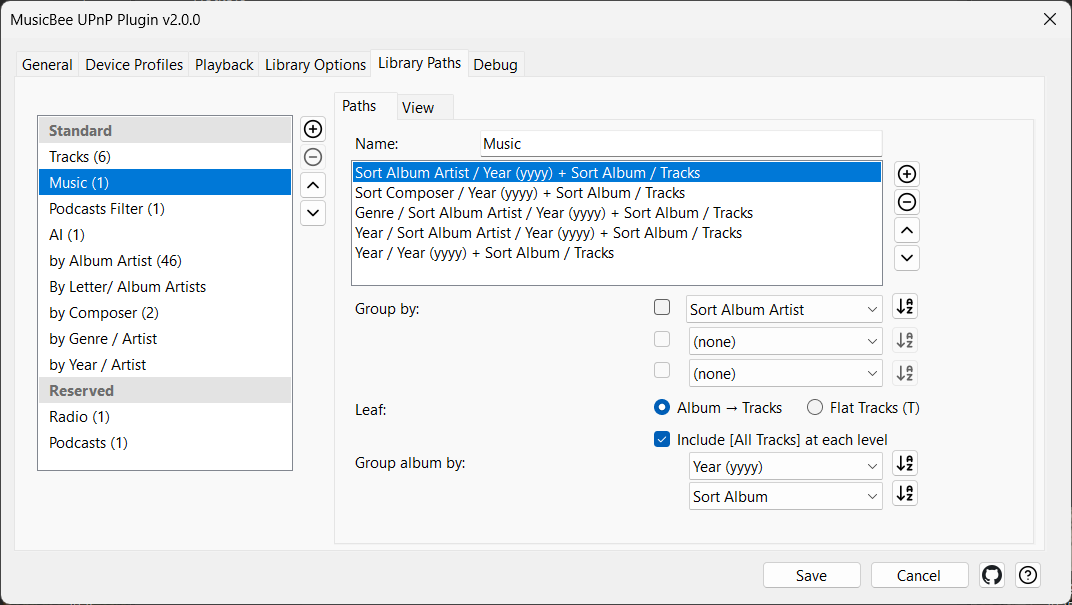
| Control | What it does |
|---|---|
| Apply | Makes every node you've ticked in the tree follow the currently selected template (and re-exposes it if it was hidden). |
| Expand All / Collapse All | Expand or collapse the whole endpoint tree. |
| Show only the nodes following the selected template | The funnel toggle: filters the endpoint tree to only the nodes following the selected template. Select another template to re-filter; toggle off to restore the full tree. |
| Template | The named path template being edited. |
| ↑ / ↓ | Move the selected template up or down in the list, to order how your templates are presented. |
| Group by | The field(s) the level groups by (e.g. Album Artist). |
| Leaf | What the deepest level shows. |
| Album → Tracks (AT) | Leaf mode: Album → Tracks — drill through albums to their tracks. |
| Flat Tracks (T) | Leaf mode: Flat Tracks — a single flat track list. |
| Include [All Tracks] at each level | Adds an [All Tracks] shortcut at each level. Shown only in Album → Tracks mode. |
| Group album by | Defines what counts as one album, how its title reads, and the order albums appear — pick one or more fields (Album, Sort Album, Year, Album Artist…), each with its own ascending/descending toggle. Shown only in Album → Tracks mode. |
| Add / Remove | Add or remove a path in the template. |