Trợ giúp
What MusicBee UPnP Plugin is for
An open-source plugin for MusicBee that connects your library to the UPnP/DLNA devices on your home network — phones, smart TVs, hi-fi streamers, networked speakers — with no cloud and no login. It is a fork of Steven Mayall's original UPnP plugin, rebuilt around making a big, varied library pleasant to browse from another device.
Two things set this fork apart from an ordinary UPnP server, and they are the reason to choose it:
- It publishes the whole of MusicBee — not just "Music." Your Filters, Podcasts, Audiobooks, Radio stations, the Inbox and your Playlists all appear as their own browsable containers on the other device, alongside the music. Most servers show a flat music library and nothing else.
- Every one of those nodes can be shown, hidden, and shaped individually. You decide which nodes a device sees, and you give each one its own discovery path — the route you drill down through it (Album Artist → Album → Tracks, a flat track list, by Genre, by Year…). A 300,000-track library ends up browsing like a well-organised one instead of a flat data dump.
Underneath those two headline ideas, the plugin is organised around one structural fact: MusicBee can play three different network roles, and every screen in the settings dialog belongs to one of them. Get the three roles straight and the rest of the dialog explains itself:
- Server — other devices browse the MusicBee library and pull tracks from it. This is where the two headline features above live.
- Renderer — MusicBee becomes a target other apps can play to, like a network speaker.
- Control point — MusicBee plays its own audio out to a remote speaker or streamer.
You can use one role or all three. Turn on only what you need. Throughout this guide, each setting is explained right beside the feature it belongs to — there is no separate "settings" list to cross-reference.
Installation
- Download
mb_UPnP_yaiol.dllfrom the release page. - Copy it into your MusicBee plugins folder, typically
C:\Users\<you>\AppData\Roaming\MusicBee\Plugins\. - Restart MusicBee.
- Open Edit → Preferences → Plugins, find MusicBee UPnP Plugin, and click Configure.
The yaiol DLL has a distinct filename, so it can sit on disk and run alongside the original plugin without conflict.
Server — others browse your library
UPnP is a protocol for audio devices to find and drive each other over a local network, and within it every participant plays one defined part. With the Server role on (the UPnP Server switch), MusicBee plays the Media Server part: it answers discovery requests on your LAN and serves its library to any device that asks. From the other device you see a media tree and tap to play; the audio streams from MusicBee's built-in HTTP server straight to the device. MusicBee is just the source — the other device is in charge.
Why you'd use it. It turns the one PC that holds your whole collection into a network source every other gadget can reach, without copying files or signing into anything. This is the half of the plugin the fork invests in most heavily, and it is where the two headline features live — what you publish (below) and how each node is shaped.
When to turn it off. Only if you never browse MusicBee from another device. The role is independent of the other two; you can serve the library and still leave the renderer and control-point roles off.
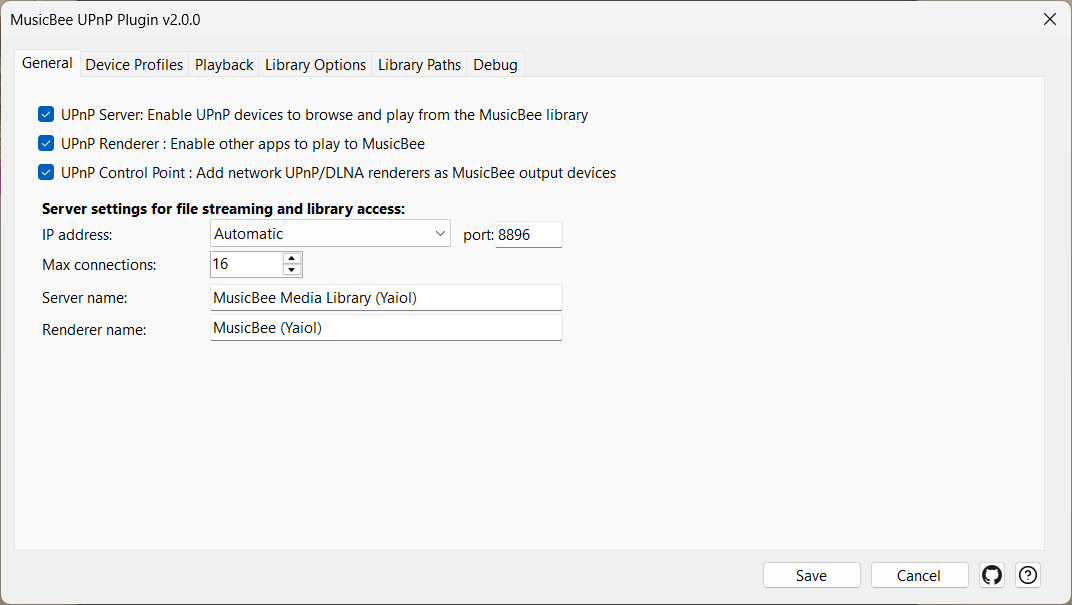
A few server-wide settings live alongside the switch: the server name other devices show in their list, the network interface and port MusicBee binds to (see Finding each other on the network), and a max-connections cap on how many simultaneous streams the server will serve at once.
Settings
| Control | What it does |
|---|---|
| UPnP Server: Enable UPnP devices to browse and play from the MusicBee library | Master switch for the Server role — lets UPnP devices browse and play from the MusicBee library. |
| Server name | The name other devices show for MusicBee when they discover it. |
| Max connections | Maximum simultaneous file streams the server will serve (default 16, range 1–256). Raise it if a device firing many parallel requests trips the ⚠ Max Conn badge. Takes effect after a restart. |
| Update play statistics in MusicBee | Counts tracks played over UPnP toward MusicBee's play counts and last-played timestamps. |
Publish all of MusicBee, not just Music
This is the first of the fork's two headline features. An ordinary UPnP server hands the network a single flat "Music" library. This one surfaces every content area MusicBee organises, each as its own top-level container on the browsing device.
The seven things MusicBee can publish
When a device browses MusicBee, the root it lands on can offer all of these, side by side:
- Music — your main library, shaped however you like (see discovery paths below).
- Filters — the filter tabs you already use across the top of MusicBee's main view (
Music,ALL,FAV, a Jazz filter, a Classical filter, whatever you've set up) appear as entry points, mirroring how you already think about your library. Filters are read live from the same files MusicBee itself uses, so they stay in sync with no configuration. - Podcasts — your podcast subscriptions, each opening to its episodes, with subscription artwork carried through.
- Audiobooks — MusicBee's Audiobooks category.
- Radio — your saved internet-radio stations.
- Inbox — MusicBee's Inbox of newly added, not-yet-filed tracks.
- Playlists — your MusicBee playlists.
Because these come straight from MusicBee, they need no separate setup — subscribe to a podcast or add a station in MusicBee and it is reachable from the network the next time the device browses. Whether each one actually appears, and the shape it takes, is the job of the next feature.
By default, Filters and Playlists sit inside a tidy wrapper folder of their own. Whether each source actually appears, where it sits — including pinning the ones you reach for most high in the browse root, grouped with their own kind — and the shape it takes are all decided per node by the next feature.
Earlier versions of this help listed "no podcast root container" as a limitation. That is no longer true — podcasts are published like every other source.
Show, hide and shape each node
This is the second headline feature, and the one that earns the fork its name. Publishing seven sources would be noise if you couldn't control them — so every exposed node is independently switchable, pinnable to the root, and carries its own discovery path.
You manage all of this on the settings dialog's View tab, which shows the whole exposed tree as a checklist. The pattern is always the same: tick the nodes you want to act on, then use the controls beside the tree to set them all at once — make them visible or hidden, pin them to the top of the tree, or apply a path template. So you might expose Music, Filters and Playlists, hide the Inbox and Radio, pin your Jazz filter to the root, and give Podcasts a by-subscription shape — each independently.
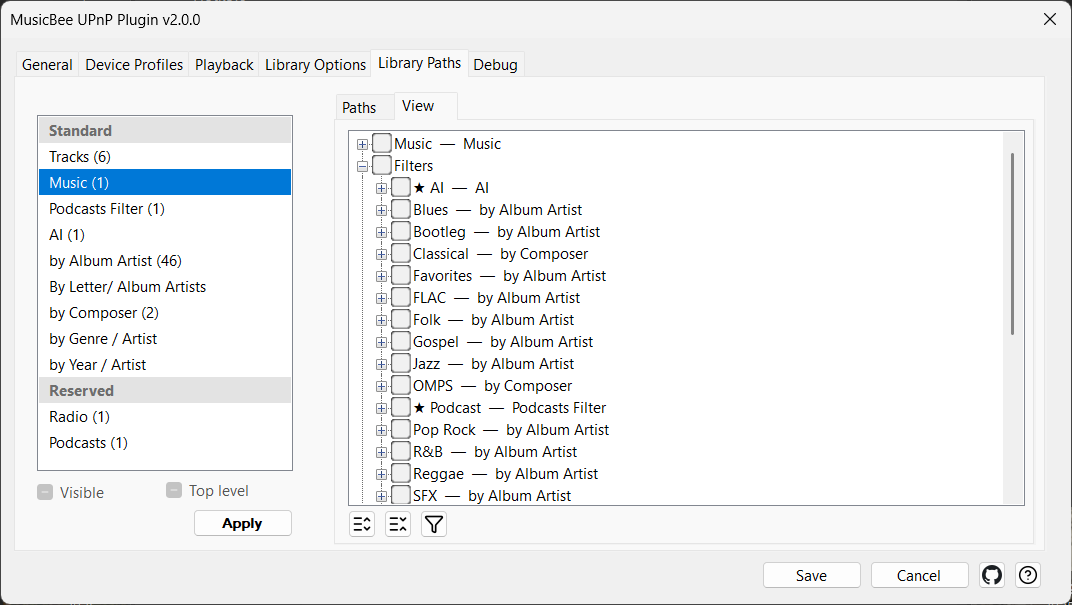
Show, hide and pin each node
Two switches decide whether and where a node appears, separately from how it's shaped. Both sit on the View tab as tristate checkboxes that act on every node you've ticked in the tree:
- Visible — whether devices see the node at all. Untick it to hide a node; it stays in your library, it simply stops being advertised. (Because it acts on the ticked set, the checkbox shows a shaded "mixed" state when your selection is part-visible, part-hidden.) Hidden nodes are greyed in the tree — and a folder greys once every node inside it is hidden — so a glance tells you what's still exposed.
- Top level — whether the node is also pinned high in the browse root. Pinning is additive: the node still appears in its usual wrapper folder and gains a copy near the top of the root, grouped with its own kind — a pinned filter sits directly below the Filters folder, a pinned playlist directly below the Playlists folder — so your shortcuts stay next to the things they belong with. Pinned nodes are flagged with a ★ in the dialog so you can see at a glance which ones are lifted.
When a filter or playlist is pinned to the root it can be hard to tell apart from a normal top-level source, so you can prepend a short prefix to its displayed name (set on the Library Options tab). The prefix is literal — whatever you type is placed in front of the name verbatim, so include your own trailing space if you want one.
Worked example. You navigate mostly by your Jazz filter and your Friday Night playlist, both currently buried inside the Filters and Playlists wrapper folders.
You tick both nodes in the View tree and click Top level. Each now shows a ★ in the dialog. On the browsing device they still appear inside their wrapper folders as before, but also gain a copy high in the root, each beside its own kind: the pinned Jazz filter sits directly below the Filters folder and the pinned Friday Night playlist directly below the Playlists folder. With the filter prefix set to
Filter:and the playlist prefix toPlaylist:, the two pinned copies read Filter: Jazz and Playlist: Friday Night — distinct from their in-wrapper copies, and each sitting next to the folder of its own kind. Untick Top level for either and its pinned copy disappears, leaving the wrapper-folder copy untouched.
This replaces the old global "expose filters at root" / "expose playlists at root" switches: pinning is now a choice you make node by node, for any source, not an all-or-nothing toggle for filters and playlists.
Settings
| Control | What it does |
|---|---|
| Visible | Shows or hides every ticked node. Hidden nodes stay in your library but aren't advertised to devices. Shaded "mixed" state when the selection is part-visible. |
| Top level | Also pins every ticked node high in the browse root, grouped with its kind — filter pins below the Filters folder, playlist pins below the Playlists folder (additive — the node keeps its normal place too). Pinned nodes show a ★ in the dialog. |
| Filter prefix (when at root) | A literal text prefix placed in front of a filter's name when it's pinned to the root (helps the pinned copies group together). |
| Playlist prefix (when at root) | A literal text prefix placed in front of a playlist's name when it's pinned to the root. |
Discovery paths — each node's drill-down route
A discovery path is the route a browser walks inside a node. The same node can be presented as Album Artist → Album → Tracks, or as a single flat track list, or grouped by Genre and then Artist, or by Year. A path is built from one or more levels (the field each level groups by) ending in a leaf (what the deepest level shows — albums then their tracks, or a flat track list). A node can even carry several paths at once, so it offers more than one way in.
Different content wants different shapes, and the wrong shape makes a node unusable. Music wants album-artist grouping; a playlist wants a flat ordered list; podcasts want their subscriptions. Each node gets the right answer because each holds its own path.
Worked example. You have a 5,000-track Jazz filter and a 30-track "Friday Night" playlist, both exposed.
- For the Jazz filter you apply a template whose path is Album Artist → Album → Tracks. On the device you drill: artists, then that artist's albums, then the album's tracks in disc-and-track order.
- For the playlist you apply the Flat Tracks template instead. Opening it gives the 30 tracks in playlist order, with no artist or album layer in between — exactly what a playlist should be.
Same plugin, same dialog, two nodes, two completely different shapes — because the path is a property of the node, not a global setting. You can't predict a node's on-device layout without knowing which template it carries; that's why this needs spelling out.
A node doesn't just receive a copy of a template — it follows it. The View tree shows which template each node follows, right after the node's name, and editing a template on the Paths tab immediately reshapes every node following it — no re-applying node by node. Applying a template to a hidden node also makes it visible again: applying is the "show me this, shaped like that" gesture, while hiding stays with the Visible checkbox. Each template row shows a live (n) count of the nodes following it, and a template can only be deleted while that count is zero — the delete button stays disabled while anything follows the template, so a node can never be left orphaned by a delete. To see exactly which nodes follow a template, the funnel button beside the View tree filters the tree down to just those nodes; selecting another template re-filters, and toggling the funnel off restores the full tree. Deleting an unused template also sticks now — the shipped defaults are no longer quietly re-created the next time the plugin loads.
When a path ends in the Album → Tracks leaf, you also decide what counts as one album. Instead of grouping strictly by album title, you pick one or more fields — Album, Sort Album, Year, Album Artist — that together decide which tracks fuse into a single album, how its heading reads, and the order the albums appear, each field sortable ascending or descending. Adding Album Artist keeps two same-named albums by different artists apart; adding Year descending lists an artist's albums newest-first. When you group by year, MusicBee offers two fields that mirror its own — Year, the full date tag (which can hold a whole date like 2024-03-15), and Year (yyyy), just the four-digit year — so picking Year (yyyy) gathers every release of a year together instead of splitting it by exact date.
The defaults are sensible — new filters are shaped by album artist, playlists and the Inbox get sensible defaults — so for the common case you change nothing. Reach for the View tab when you want a particular node shaped differently.
Settings
You build named, reusable path templates on the Paths tab, then apply them to nodes on the View tab.
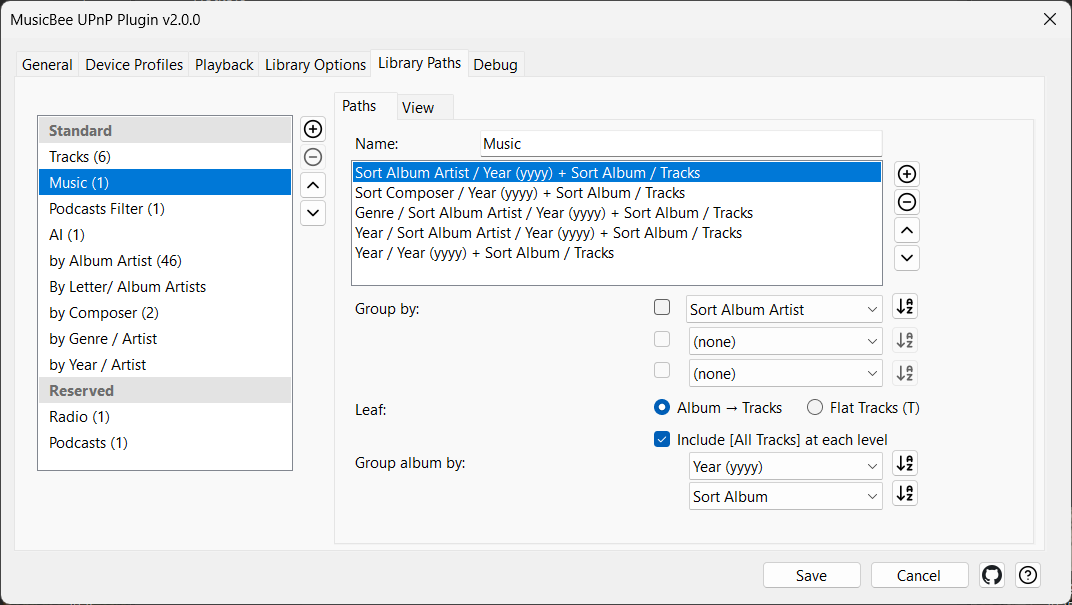
| Control | What it does |
|---|---|
| Apply | Makes every node you've ticked in the tree follow the currently selected template (and re-exposes it if it was hidden). |
| Expand All / Collapse All | Expand or collapse the whole endpoint tree. |
| Show only the nodes following the selected template | The funnel toggle: filters the endpoint tree to only the nodes following the selected template. Select another template to re-filter; toggle off to restore the full tree. |
| Template | The named path template being edited. |
| ↑ / ↓ | Move the selected template up or down in the list, to order how your templates are presented. |
| Group by | The field(s) the level groups by (e.g. Album Artist). |
| Leaf | What the deepest level shows. |
| Album → Tracks (AT) | Leaf mode: Album → Tracks — drill through albums to their tracks. |
| Flat Tracks (T) | Leaf mode: Flat Tracks — a single flat track list. |
| Include [All Tracks] at each level | Adds an [All Tracks] shortcut at each level. Shown only in Album → Tracks mode. |
| Group album by | Defines what counts as one album, how its title reads, and the order albums appear — pick one or more fields (Album, Sort Album, Year, Album Artist…), each with its own ascending/descending toggle. Shown only in Album → Tracks mode. |
| Add / Remove | Add or remove a path in the template. |
Paths are typed to the node they fit
Not every field means something for every kind of node. A radio station has no album or year; a podcast episode has a subscription, a folder and a publish date but no album artist. So each path belongs to one of three categories — Standard (your music, filters, audiobooks, inbox and playlists, which all carry full tags), Radio, or Podcast — and that category decides two things at once: which fields you may group by, and which nodes the path can be applied to.
On the Paths tab the template list is drawn in two bands: Standard — where your own templates live, and where every new template is created — and a Reserved band holding the Radio and Podcasts templates. While you edit a Standard template the field menu offers everything; a Radio template offers only the fields a station actually has; a Podcast template only what an episode has — its folder, its subscription, and its publish year. On the View tab, applying a template only lights up the nodes it fits — the rest grey out and can't be ticked — so a Standard path can never land on the Radio or Podcasts nodes.
In fact you never apply anything to Radio or Podcasts at all: each is permanently paired with its category's template. Reshape the Radio or Podcasts template on the Paths tab and the node follows by itself; with a Reserved template selected, the Apply button is simply disabled, because there is nothing to apply. This stops you building a path that quietly produces nothing by grouping on a field the node can't fill — and since a followed template can never be deleted (see Discovery paths above), the Radio and Podcasts templates are always there to reshape.
Artists filed by their sort name
Inside any music-shaped node, artists are grouped and alphabetised by the Sort Album Artist tag, not by the display name. This is the part that surprises people, so here is exactly what happens.
Worked example. Suppose a track is tagged:
- Artist =
Bob Dylan- Sort Album Artist =
Dylan, BobIn the browsing tree, Dylan is filed under the letter D (from
Dylan, Bob), not under B (fromBob Dylan). The sort tag drives both the grouping and the alphabetical position, exactly the way a hi-fi browser or a record shop would file it.
It's automatic and driven entirely by your existing MusicBee tags — there's nothing to configure.
Multi-value tags fan out
When a track's Album Artist (or Genre) holds more than one value, the track appears under each value separately, instead of inventing one fused entry.
Worked example. A track's Album Artist holds two values:
yaiol; Ars Ricercata. That track appears under bothyaiolandArs Ricercata— once in each artist's branch — rather than under a single fake "yaiol; Ars Ricercata" artist. Multi-value artist tags fan out the same way multi-genre tags do.
Like sort-name grouping, this is automatic and tag-driven.
Bucketing long lists by first letter
If a level grows too long to scroll comfortably on a phone, it can bucket by first letter — insert an A, B, C, … layer above the entries so you pick a letter first. It's set per field inside a template, from the field's context menu: Split [field] by their first letter. Leave it off for short lists; turn it on for the levels — usually artists — where the list is enormous.
Browse a tag as a nested tree
Some tags pack a hierarchy into a single value with a separator — a Grouping tag of Jazz/Cool Jazz, a custom genre of Electronic/Ambient/Drone. By default that whole string is one flat entry, so the structure you encoded in the tag is wasted. Mark the field as hierarchical and the plugin splits each value on a delimiter you choose and turns it into a drill-down tree instead — you pick Jazz, then Cool Jazz, exactly as the tag is written.
You set this up on the Library Options tab: pick a field, type the one character that separates its levels (for example /), and add it to the list. It then applies wherever that field is used as a grouping level in any discovery path. Tracks tagged at a branch rather than a leaf — tagged just Jazz, with no sub-genre — appear under a bracketed [Jazz] entry beside the deeper branches, so nothing is hidden. A branch that holds only one child collapses automatically (the same one-choice rule as everywhere else), and ; can't be used as the delimiter — that's MusicBee's own multi-value separator, so a value like Rock; Jazz/Cool Jazz is split into the two tags first, then each is drilled.
Worked example. Your tracks carry a Grouping tag like
Jazz/Cool Jazz,Jazz/Hard BopandClassical/Baroque, and a discovery path that groups by Grouping. Flat, the node lists three long entries. Mark Grouping hierarchical with/, and the same node now opens to Jazz and Classical; opening Jazz reveals Cool Jazz and Hard Bop. A track tagged justJazzshows up under a [Jazz] entry alongside them. You can't predict this layout from the tag alone — it depends entirely on which field you've marked and with which delimiter — so it's worth setting up deliberately.
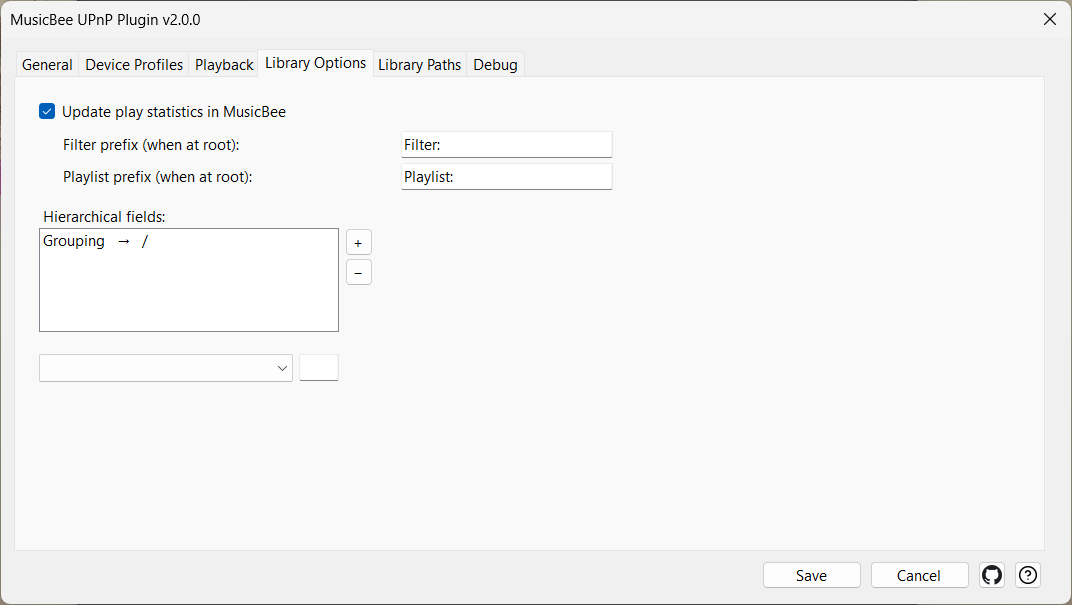
Settings
| Control | What it does |
|---|---|
| Hierarchical fields | The list of fields rendered as a drill-down tree, each paired with its one-character delimiter. Pick a field, type the separator (not ;), and add it; the field then drills level-by-level wherever a discovery path groups by it. |
One-choice levels collapse on their own
When a grouping level has only one entry for what you're browsing, the plugin skips it instead of making you open a folder that contains a single folder — you drop straight to the next real choice. There's nothing to configure; it happens automatically, on every path.
Worked example. Your path groups by Record Type → Album → Tracks. An artist who only ever released LPs would otherwise make you open a lone Record Type → LP folder just to reach the albums. Instead, opening that artist drops you straight onto the albums — the redundant level vanishes for that artist, while an artist with LPs and EPs still shows the Record Type choice. Several one-entry levels in a row collapse together, and a first-letter level with only one letter in play disappears the same way.
Album thumbnails in the browse tree
Albums carry their artwork into the browse response, so devices that show thumbnails in their lists actually display them. (The original plugin only attached art to individual tracks, so album lists showed as plain text.) Nothing to configure — it just travels with the album.
Search and shuffle from the device
Most control apps put a search box and a "random" or "shuffle" folder beside the browse tree. Both reach MusicBee as the same kind of UPnP request, and both are answered live from your library rather than from a pre-built index — so a track you retagged a minute ago is found straight away.
Search matches on title or on artist. A title search looks at the track title when your app is searching for tracks and at the album title when it is searching for albums. An artist search matches either the track's Artist or the album's Album Artist, so a compilation turns up whether you type the performer's name or the name the album is filed under. Results come back a page at a time as you scroll, so a term that matches thousands of tracks stays responsive instead of stalling or looping back to the first results.
Worked example. You search for
Bluefrom your control app's album view. You get the albums named Blue — Kind of Blue, Blue Train — and not every album that happens to contain a track called "Blue". Switch the app to its track view and search the same word and you get the tracks instead. Which field is matched follows what your app asked for, not what you typed.
Shuffle folders — the Random Tracks and Random Albums entries some apps show — are a request for a slice of everything, with no search term attached. By default that "everything" is your whole music library, which is rarely what you want if half of it is spoken word or material you never shuffle. Random plays from, on the Library Options tab, lets you point it at one of your MusicBee filters instead, so every random request draws only from that filter's contents. Hidden filters are offered here too — scoping the shuffle has nothing to do with whether you want that filter appearing in the browse tree. Opening a shuffle folder from inside a filter on the device still shuffles that filter: an explicit choice made while browsing always wins over the setting.
Settings
| Control | What it does |
|---|---|
| Random plays from | Where a device's shuffle request draws from — All Music (your whole library, the default) or a named MusicBee filter. If the chosen filter is later deleted or renamed in MusicBee, the setting quietly falls back to the whole library. |
Adapt the stream to each device
Browsing is only half the job; the audio still has to play on hardware that varies wildly in what it accepts. This feature is how MusicBee tailors each stream — and it is shared: it applies both when the Server role serves a track to a browsing device, and when the Control point role plays out to a remote renderer. Two concepts drive it: device profiles (what a device can handle) and the transcoding precedence chain (whether a track is re-encoded at all).
Device profiles — adapting to each device
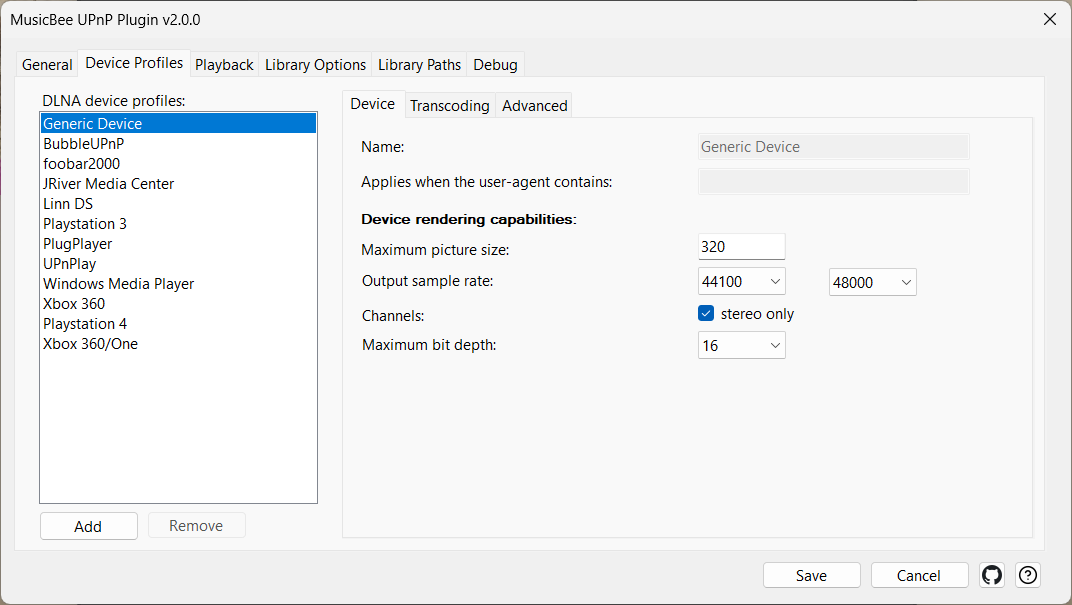
Real UPnP hardware is inconsistent about what it accepts: one streamer wants 24-bit FLAC, another only plays 16-bit PCM, a third lies about which codecs it supports. A device profile is how you teach the plugin one device's limits and quirks.
How a profile is chosen. Every device identifies itself with a User-Agent string when it connects. A profile says "apply me when the user-agent contains this fragment." When a device connects, the plugin finds the matching profile; if none matches, a built-in Generic Device profile is the fallback. You can list several fragments separated by | (for example Linn|ChorusDS|BubbleDS) so one profile covers a family of related devices.
What a profile controls. The limits a device can't exceed — maximum picture size for album art, allowed sample-rate range, maximum bit depth, stereo-only downmixing — plus, when a track does need converting, which output format and sample rate to convert to. A separate group of "problem device" switches works around specific hardware bugs (raw-PCM handling, byte order, the HTTP content-length header). Those exist because UPnP compliance in the wild is patchy; most people never touch them.
When to touch a profile. Only when a specific device misbehaves. Out of the box the Generic profile, plus the per-device defaults shipped for common hardware, cover the majority of cases. To find a device's user-agent so you can target it, turn on debug logging (see Diagnostics), play something from the device, and read the useragent= line in the log.
The profile's most consequential switch — force native stream — isn't really about limits at all; it decides whether any of the above applies. That's the next concept.
Settings
| Control | What it does |
|---|---|
| Name | The profile's display name. |
| Applies when the user-agent contains | The user-agent fragment(s) a device must contain to match this profile; separate alternatives with |. Unmatched devices fall back to the Generic profile. |
| Maximum picture size | Maximum album-art pixel size sent to this device (160 px is the DLNA standard; larger isn't universally supported). |
| Output sample rate / to | The sample-rate range the device accepts; sources outside it are converted (forces transcoding). |
| Channels / stereo only | Downmix multi-channel to stereo for devices that only do two channels. |
| Maximum bit depth | Highest bit depth the device accepts; deeper sources are converted. |
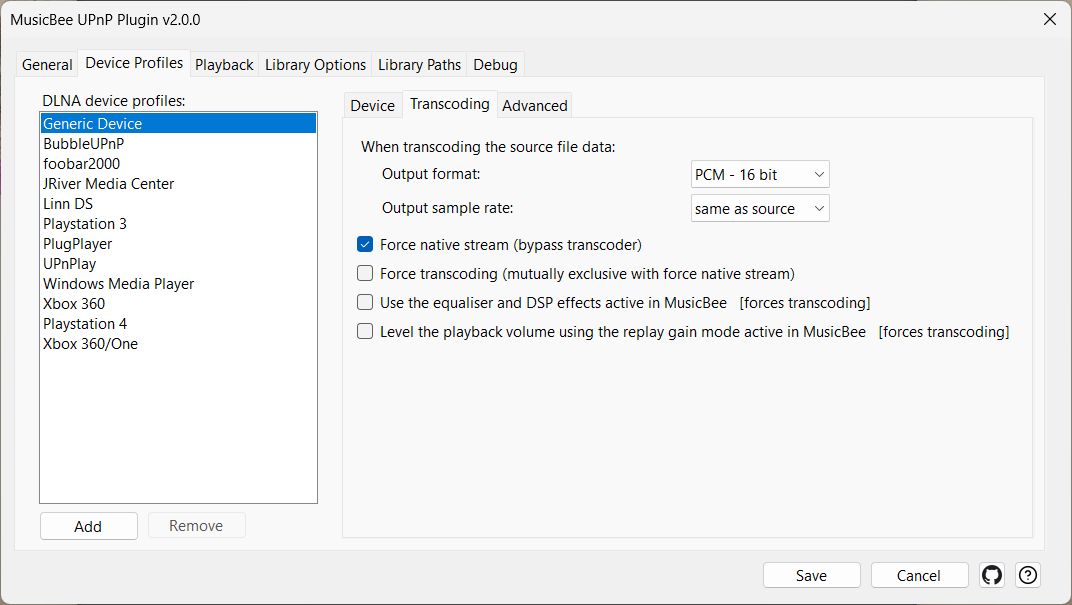
| Output format | When a transcode is needed, the format to convert to (PCM, FLAC, MP3, AAC, Ogg). |
| Output sample rate | The sample rate to use when transcoding; "same as source" preserves the original. |
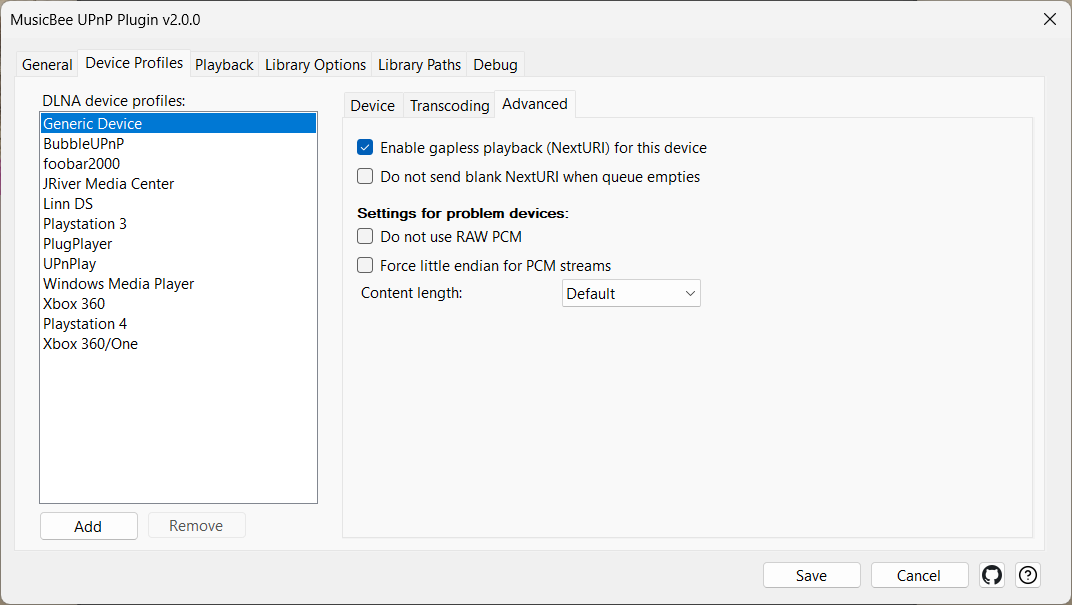
| Do not use RAW PCM | Wraps PCM in a WAV container instead of sending raw L16/L24. For devices that garble raw PCM (some Marantz). |
| Force little endian for PCM streams | Sends PCM little-endian instead of the spec's big-endian. Cures white-noise playback on devices that expect little-endian. |
| Content length | How to fill the HTTP Content-Length header: Default (correct value), None (omit), PCM Only, or Fixed (a sentinel "huge" value). For devices that mishandle the header. |
Transcode or not — the precedence chain
"Transcoding" means re-encoding a track on the fly — to a format the device can play, or so MusicBee's EQ and volume-levelling can be applied. The plugin would rather not transcode (sending the original file is faster and lossless), so it walks a fixed chain of rules to decide. Higher rules win and silently override lower ones. This is the single most misunderstood part of the plugin, because several settings look like they should cooperate and don't.
| Priority | Rule | Effect |
|---|---|---|
| 1 (highest) | Force transcoding (per device profile) | Always transcode. Overrides everything below. Mutually exclusive with force-native — ticking one unticks the other. |
| 2 | Force native stream (per device profile, default ON) | Never transcode for this device. Suppresses rules 3–5 entirely — sends the original bytes regardless of format, effects, or limits. |
| 3 | EQ/DSP and ReplayGain (Library) | Force transcoding so the audio can be processed. Silently ignored if rule 2 wins. |
| 4 | Sample rate / bit depth / stereo-only (device profile) | Source out of range → transcode to fit. Silently ignored if rule 2 wins. |
| 5 (lowest) | Codec support (device profile) | Source codec the device can't play → transcode to the profile's output format. Silently ignored if rule 2 wins. |
Because force native stream defaults to ON for every profile, the out-of-the-box behaviour is: hand the device the original file and do nothing else. That's exactly right for a modern device on a good network — but it means the Library effects and the profile's audio limits appear to "do nothing" until you change rule 2.
Worked example. You want MusicBee's ReplayGain volume-levelling to apply to your streamer. You tick Level the playback volume using the replay gain mode active in MusicBee under Library. You play a track — and the volume isn't levelled at all.
Why: the streamer's profile still has force native stream ON (rule 2). Rule 2 outranks the ReplayGain rule (rule 3), so the plugin ships the untouched file and your ReplayGain setting is silently skipped.
The fix: open that device's profile and untick force native stream. Because force-native is per profile, you can leave it on for your bit-perfect hi-fi DAC and off for the portable speaker that needs ReplayGain — each device gets the right answer.
Rules of thumb:
- Want EQ/DSP or ReplayGain to apply to a device? Turn force native stream off on that device's profile.
- Want to guarantee a fresh transcode (for testing, or for a device that chokes on native files)? Tick force transcoding on its profile — it outranks everything.
- Otherwise, leave force native stream on. It's the highest-impact setting in the plugin and the default is right for most modern gear.
Settings
| Control | What it does |
|---|---|
| Force native stream (bypass transcoder) | Sends the original file bytes, bypassing the transcoder, effects, ReplayGain and the profile's audio limits. Default ON. The highest-impact playback setting; rule 2 of the chain above. |
| Force transcoding (mutually exclusive with force native stream) | Forces every stream to this device through the transcoder. Outranks force-native; the two are mutually exclusive (ticking one unticks the other). Rule 1. |
| Use the equaliser and DSP effects active in MusicBee [forces transcoding] | Applies MusicBee's equaliser and DSP effects to outgoing audio. Forces transcoding (rule 3), and is suppressed on any device whose profile has force-native on. |
| Level the playback volume using the replay gain mode active in MusicBee [forces transcoding] | Applies MusicBee's ReplayGain volume-levelling. Forces transcoding (rule 3), and is suppressed on any device whose profile has force-native on. |
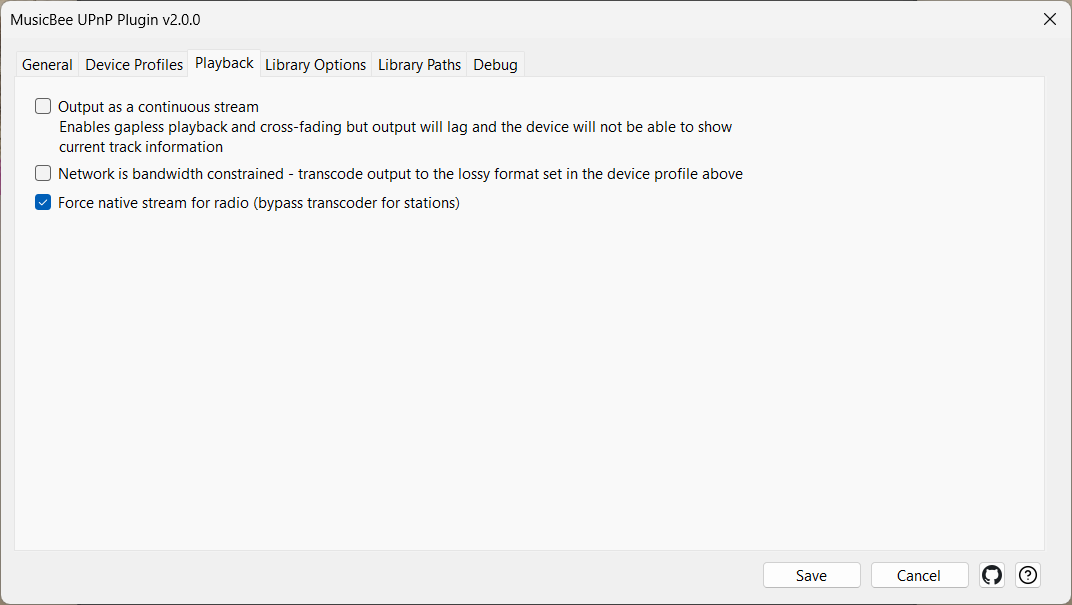
| Force native stream for radio (bypass transcoder for stations) | Sends radio/stream sources untouched, bypassing the transcoder for stations specifically. |
Renderer — MusicBee as a play-to target
With the Renderer role on (the UPnP Renderer switch), MusicBee tells the network "I am a device you can play to." A separate control-point app — a phone remote, another media controller — can then select MusicBee and push audio for it to play on this PC. You give the target a friendly renderer name so it's recognisable in the other app's list.
What it can play. Both kinds of track a controlling app might send. If the track comes from MusicBee's own library — you browsed this PC's library on your phone and tapped a song — MusicBee plays the file straight off its own disk, untouched, with none of the quality loss a round trip over the network could introduce. If the track lives anywhere else — a file stored on the phone itself, a NAS, another media server — MusicBee fetches it and plays it here.
A track sent from elsewhere is copied first, and why that matters. For a track that isn't in your library, MusicBee quietly downloads a copy to a temporary folder and plays that, rather than listening to it over the network as it goes. It has to: anything MusicBee treats as a live network stream can be started and stopped but not moved through, so jumping to a different point in the song would be impossible, and the track would show as a bare web address instead of its title. Playing a real file on your own disk avoids both. The copy takes about a second on a home network. A few are kept side by side — the one playing, the one queued next, and one behind so that skipping backwards is instant — and older ones are deleted as new tracks arrive; anything left over is cleared away next time MusicBee starts. Track length is no obstacle: a long high-resolution or DSD file is fetched like any other.
Internet radio is recognised and left alone. A live broadcast is never copied, because it has no end to download and there is nothing to jump through anyway — MusicBee simply plays it as the stream it is. The controlling app says which of the two it is sending, so this needs no setting and no guesswork on your part. The same applies if a copy can't be fetched for any other reason: playback continues over the network, and only then do the title and the position slider become unreliable.
Albums play without gaps. When the controlling app tells MusicBee what comes next — most do — that track is fetched while the current one is still playing, and MusicBee's own player crosses the boundary. So a live recording, a DJ set or a continuous classical work sent from a phone runs through as it should, rather than pausing at every track.
Why you'd use it. It lets a phone or tablet use this PC as a UPnP speaker — handy when the PC is wired to the good speakers and you want to drive it from the couch, whether the music lives on the PC or on the phone in your hand.
When to turn it off. Leave it off unless you specifically want to send audio to this PC from another app. With it off, MusicBee won't appear as a target anywhere, which is usually what you want.
Use one controlling app at a time. UPnP has no notion of an app "owning" a renderer: any app on the network can send tracks to MusicBee, and any app watching can react to what it sees. So if two players are pointed at MusicBee at once, you will get behaviour that looks like a bug and isn't. A second app that still has MusicBee selected keeps watching, sees the track it sent stop, concludes its song finished, and helpfully sends the next one from its queue — so the music suddenly jumps to a different album, or pressing next in one app starts a song in the other. Stopping playback in the second app is not enough, because it stays selected and stays watching. Point it back at the phone's own speaker, at another device, or close it properly.
Note on maturity. The renderer is newer than the server role and has had less testing across real hardware. If a particular controller app drives it oddly, that's useful to report.
Settings
| Control | What it does |
|---|---|
| UPnP Renderer : Enable other apps to play to MusicBee | Master switch for the Renderer role — lets other apps play to MusicBee. Takes effect after a MusicBee restart. |
| Renderer name | The name this PC advertises as a renderer, shown in other apps' device lists. |
Control point — play out to a remote speaker
With the Control point role on (the UPnP Control Point switch), network UPnP/DLNA renderers appear as output devices inside MusicBee — the same place you pick your sound card. Choose one, press Play, and MusicBee streams the audio out to that remote speaker or streamer while you keep using MusicBee's own interface as the remote.
Why you'd use it. It makes a hi-fi streamer or networked speaker behave like just another MusicBee output, with no extra software in between.
When to turn it off. Leave it off if you only ever play through this PC's own speakers.
Two things shape how this role behaves. The first is gapless playback (below). The second is Adapt the stream to each device — the same device profiles and transcoding precedence that govern the server apply here too, since the plugin is again feeding audio to a remote device. The control point also reuses MusicBee's HTTP server to feed the audio out, so the server's port and firewall rules matter here even if you never turn the Server role on.
Settings
| Control | What it does |
|---|---|
| UPnP Control Point : Add network UPnP/DLNA renderers as MusicBee output devices | Master switch for the Control point role — adds network UPnP/DLNA renderers as MusicBee output devices. |
Gapless playback — two different mechanisms
Some music is meant to run without a break — live albums, classical movements, DJ sets, concept records. A half-second of silence between tracks ruins them. The plugin offers two ways to remove that gap, and they work very differently.
True gapless (NextURI). When a renderer says it supports it, the plugin pre-loads the next track onto the device before the current one ends, so the device crosses the boundary internally with no silence — like a CD player. This is the preferred mechanism: each track keeps its own metadata, seeking and skipping still work, and there's nothing to switch on — the plugin uses it automatically on capable devices. Per device, you can turn it off (for hardware whose implementation is buggy) or tell the plugin not to clear the queued track when the list empties (a workaround for devices that treat an empty queue as "stop").
Continuous stream. The older fallback concatenates everything into one endless stream. It guarantees no gaps on any device — but at a real cost: the renderer shows the first track's information for the entire session, "next/previous" controls stop working, and because everything is fused into one stream, it must all be transcoded (force-native can't apply). The on-screen label spells out the trade-off.
Which to use. Prefer true gapless — it's automatic and lossless. Fall back to continuous stream only for a device that can't do NextURI and where the gaps genuinely bother you, accepting that you lose per-track metadata and transport controls. The two are mutually exclusive: turning on continuous stream disables NextURI, so you can't accidentally run both.
Settings
| Control | What it does |
|---|---|
| Enable gapless playback (NextURI) for this device | Enables true gapless (NextURI) for this device. On for capable devices; turn off if the device's implementation is buggy. |
| Do not send blank NextURI when queue empties | Stops the plugin sending a blank NextURI when the queue empties — a workaround for devices (e.g. Denon) that treat that as "stop". |
| Output as a continuous stream | Sends one continuous concatenated stream instead of discrete tracks. Removes gaps on any device, but the renderer shows only the first track's info, transport controls stop working, and everything is transcoded. Disables NextURI while on. |
Finding each other on the network
Before any of the roles can work, the devices have to find each other. MusicBee's server binds to a network address and a TCP port, then announces itself to the LAN over SSDP so devices can discover it. The default port is 9779; if that port is already taken, the plugin automatically picks a nearby free one and devices still discover it (you only need to set a fixed port if your setup requires one).
Two settings matter on machines with unusual networking:
- IP address / network interface. "Automatic" serves on all interfaces, which is right for most PCs. On a machine with several networks at once — Wi-Fi and Ethernet and a VPN — pick the interface your audio devices are actually on, so MusicBee advertises an address they can reach.
- Port. Change it only if another program already uses the default, or your firewall insists on a specific number.
The number-one reason a device "can't see MusicBee" is the firewall, not UPnP. Windows Firewall must allow MusicBee's port on both the private and public network profiles, and you usually have to restart MusicBee after changing firewall rules. Check that before changing anything inside the plugin.
Settings
| Control | What it does |
|---|---|
| IP address | Which network interface the server binds to; "Automatic" uses all interfaces. Takes effect after a MusicBee restart. |
| port | The TCP port the HTTP server listens on (default 9779). If the port is taken, the plugin auto-selects a free one. Takes effect after a restart. |
Diagnostics
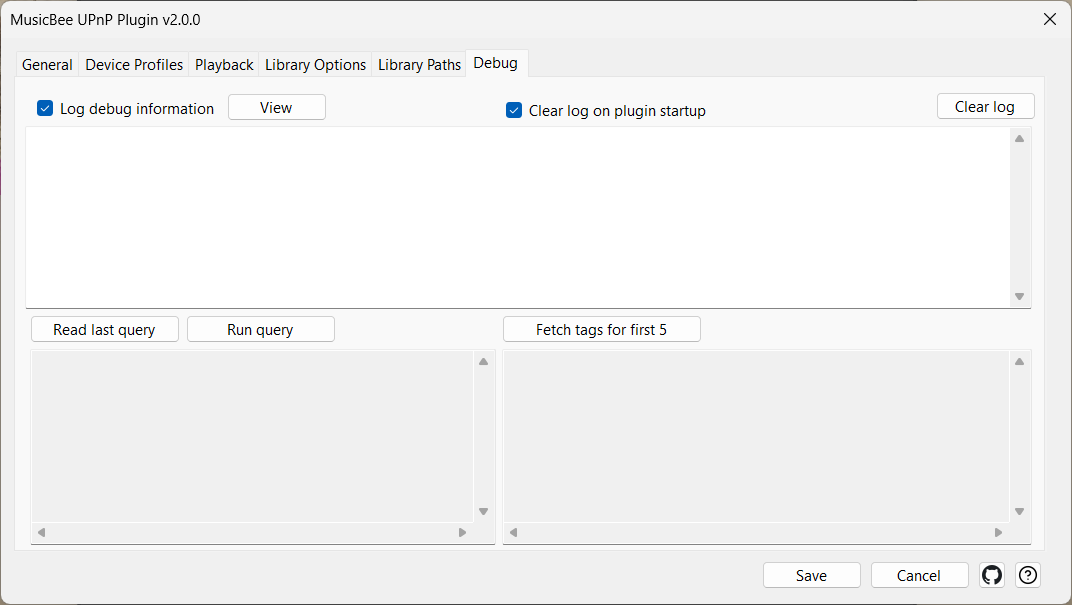
When a specific device misbehaves, the plugin's behaviour is invisible until you log it. These tools serve every role, so they sit on their own Debug tab rather than under one feature.
- Log debug information records every request, the device's user-agent, and each codec/transcode decision to a log file you can open with View. Turn it on while troubleshooting (and to discover a device's user-agent for a profile), then off again — the log grows quickly. You can also clear it on each startup.
- Network is bandwidth constrained (Playback) tells the plugin that whenever it does transcode, it should use the device profile's lossy output (MP3/AAC/Ogg) rather than a large lossless one. Turn it on for slow Wi-Fi links.
- The Debug tab also carries low-level query tools intended for development; you can ignore them in normal use (see Other settings).
For day-to-day diagnosis the pattern is: enable logging → reproduce the problem → read the log → adjust the relevant device profile → disable logging.
Settings
| Control | What it does |
|---|---|
| Log debug information | Logs every request, user-agent and codec decision to a file. On while troubleshooting, off otherwise. |
| Clear log on plugin startup | Empties the log each time the plugin starts. |
| View | Opens the current log file. |
| Clear log | Clears the log now. |
| Network is bandwidth constrained - transcode output to the lossy format set in the device profile above | When a transcode happens, use the device profile's lossy output format. For slow links. Requires a lossy format chosen in the profile's transcoding section. |
Quick troubleshooting
| Symptom | First thing to try |
|---|---|
| A device doesn't see MusicBee at all | Check Windows Firewall for both private and public networks; the plugin's port (9779 by default) must be reachable. Restart MusicBee after firewall changes. |
| A source (Podcasts, Radio, Inbox…) is missing from the tree | It's probably hidden. On the View tab, tick the node and make sure its Visible checkbox is on. |
| A node browses with the wrong shape | Apply a different discovery path on the View tab — e.g. Flat Tracks for a playlist, Album Artist → Album → Tracks for a music filter. |
| The device sees MusicBee but won't play any track | The device's profile is probably wrong, or force-native is off and a transcode is failing. Tick force native stream on that device's profile and retry. |
| Audio plays as static / white noise | Try force little endian for PCM streams on the device's profile. If that doesn't help, try do not use RAW PCM. |
| Gaps between tracks | True gapless runs automatically on devices that support NextURI. If you still hear gaps, the device either doesn't support it or its implementation is buggy — fall back to output as a continuous stream (gapless guaranteed, but track info and next/previous controls stop working). |
| EQ / DSP / ReplayGain "does nothing" | Force native stream is on for that device — it outranks them. Untick force native stream on the device's profile. See Transcode or not. |
| A modern (2020+) device ignores MusicBee's controls | The fix for devices advertising as MediaRenderer:2/3 is in this fork; it should work. If not, capture a debug log and file an issue. |
| The plugin loads but Configure won't open | Check MusicBee's ErrorLog.dat — the plugin likely crashed on load. Deleting the plugin's settings file and reconfiguring usually clears it. |
| Languages other than English | The plugin ships 22 languages and follows MusicBee's own language, and this help is available in all of them. To use a different one, set the language on the General tab. |
How far this has been tested
So nothing surprises you, here is honestly how much real-world use the plugin has had.
Everything was tested against BubbleUPnP, with foobar2000 as a second reference. All three roles work there — but BubbleUPnP is the only counterpart the plugin has been proven against, so other control apps, other players, and browsing devices beyond those two are untested and would benefit from community testing.
The place this matters most in practice is playing out to a physical streamer (the control-point role). True-gapless track transitions were confirmed on BubbleUPnP, but real streamers — WiiM, Sonos, Cambridge, Eversolo, Marantz, Denon — each handle the hand-off between tracks slightly differently, and none have been tested on actual hardware. If gapless misbehaves on one of them, turn off NextURI for that device so it falls back to playing one track at a time.
Other settings
A handful of controls don't belong to any one feature:
| Control | What it does |
|---|---|
| Help | Opens this help page in your web browser, in MusicBee's language (falling back to English where a translation isn't ready yet). |
| Read last query, Run query, Fetch tags for first 5 | Low-level query tools on the Debug tab, intended for development; ignore them in normal use. |
| Save | Saves changes. Settings that bind at startup (port, IP, max connections, renderer) raise a ⚠ Restart Required badge until you restart MusicBee. |
| Cancel | Closes the dialog without saving. |
Credits
- Original plugin by Steven Mayall. This fork rewrote the library browsing and the settings dialog and added the renderer, but the UPnP, HTTP and SSDP core it all stands on is still largely his code.
- The closed-source UPnP 2025 fork by BoringName, whose public forum thread supplied the bug catalogue.